How customer QR codes work
Customer signs in
On your online store
Shows their QR
Account page or floating button
Staff scan it
VahaPOS tile camera or a scanner
Customer on the cart
Loyalty, pricing, order history
The code contains the customer’s Shopify customer ID and nothing else. Scanning it does what searching by name and tapping the right match would do, in one step, and without asking the customer to spell anything.
Customer account QR
Adds a QR block to the customer’s account profile page. It works as soon as the extension is enabled. There is nothing to configure.
Step 1: The customer signs in to their account on your online store.
Step 2: On their profile they see a Show QR button.
Step 3: Tapping it reveals a QR code containing their customer ID.
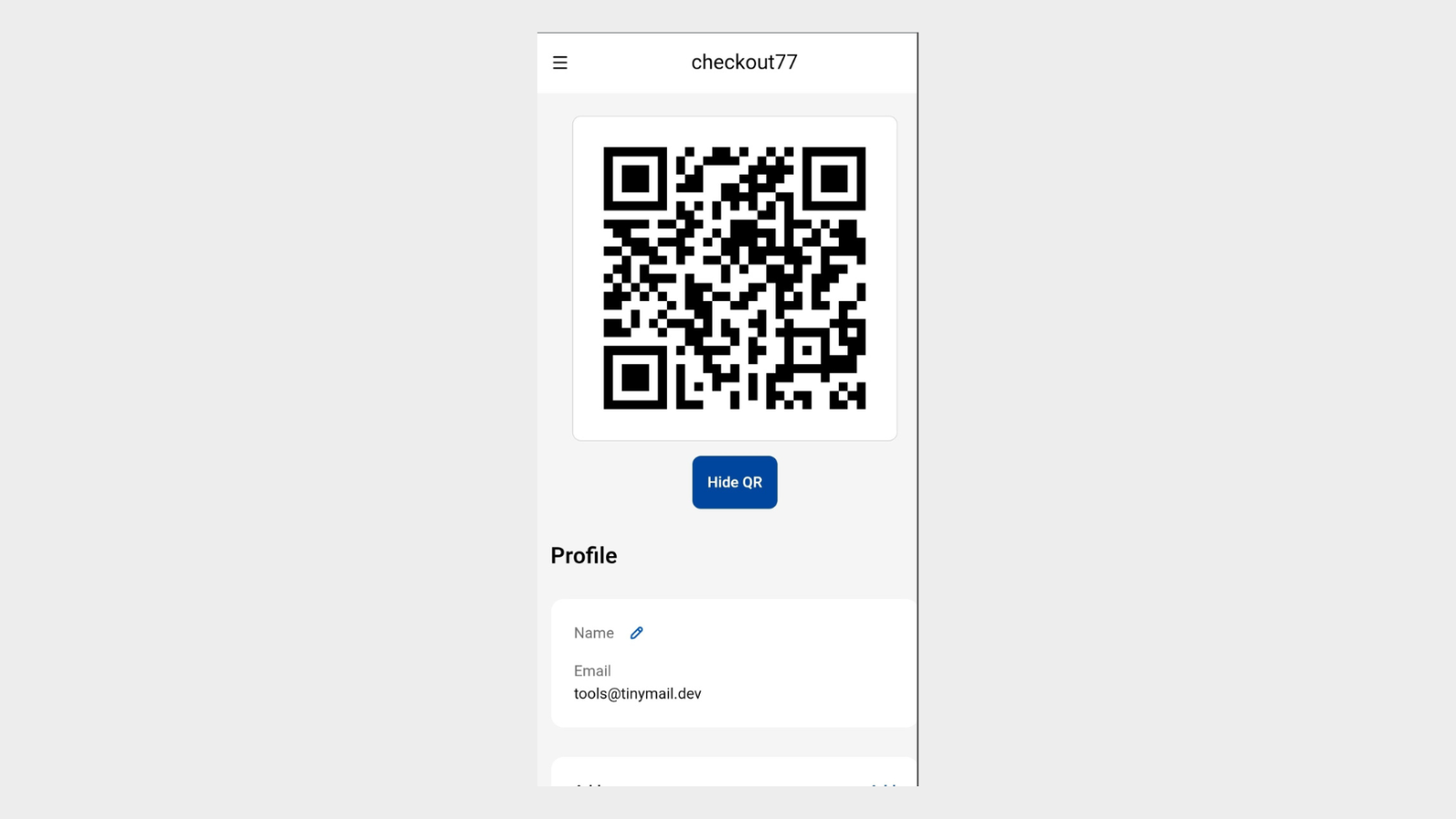
Step 4: Staff scan it at POS and the customer is attached to the cart.
Theme QR block on your storefront
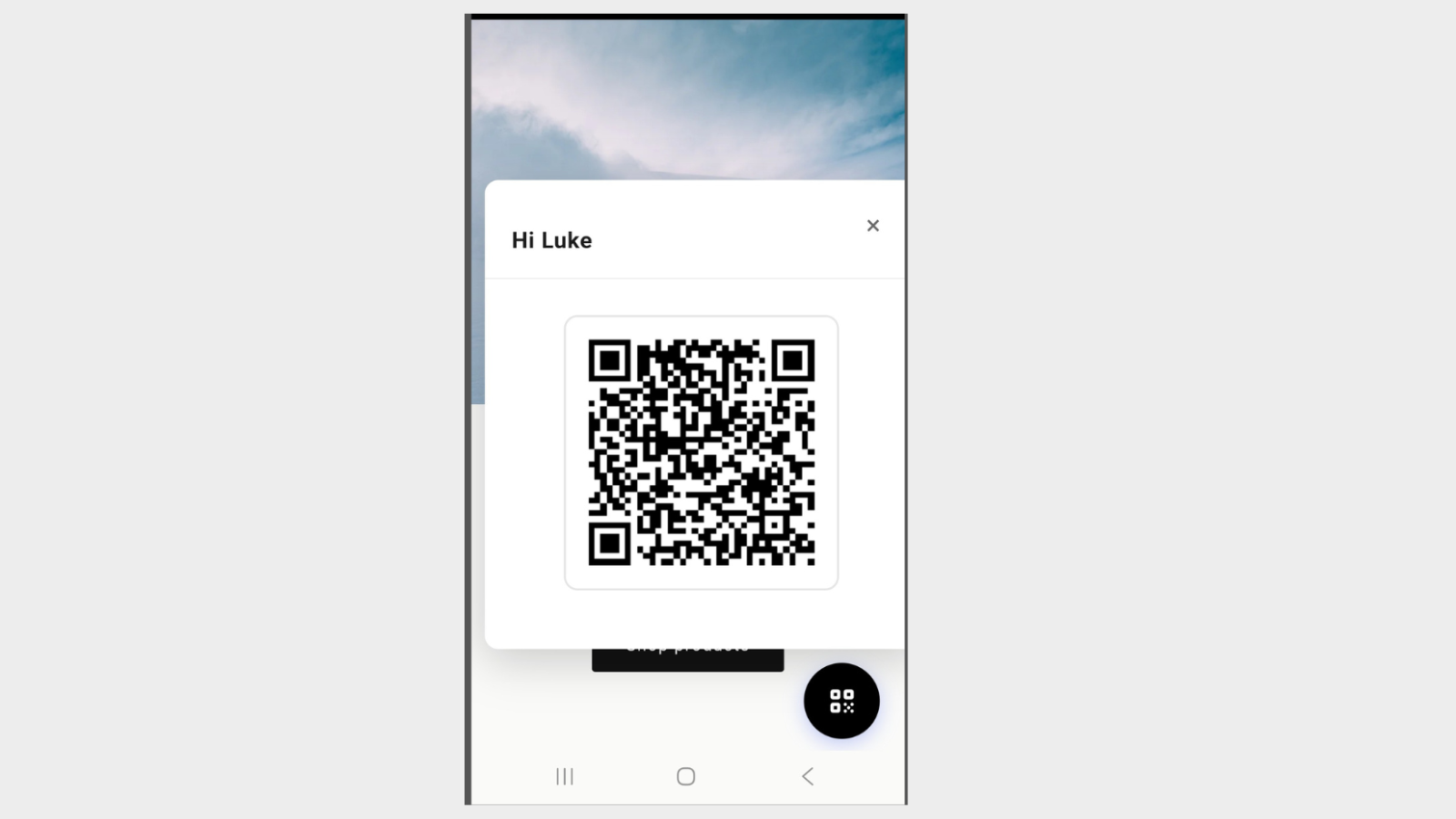
A theme app block that places a floating QR button on your storefront, so customers can reach their code without going to the account page. It only appears for signed-in customers. Add it through the theme editor.
Step 1: In Shopify admin, go to Online Store, then Customize.
Step 2: Add the Customer QR Block app block to your theme.
App blocks are listed under Apps in the theme editor’s Add block panel.
Step 3: Set its appearance and save.
Choose button alignment (bottom left or bottom right), the offset from the edge, a solid or gradient colour, and the icon colour.
Scanning at the till
- Open the VahaPOS Scan Code or Enter Weight Manually tile and tap Scan to use the camera, or point a connected Bluetooth scanner at the code.
- Shopify supported scanners such as Socket Scan and Zebra read QR codes. HID keyboard-mode scanners do not work with the tile.
- Once attached, the customer’s pricing, tags and order history apply to the sale as they would after a name search.
Other QR codes VahaPOS scans
| Type | Where it comes from | What it does |
|---|---|---|
| Customer | Account page or theme block (this guide) | Attaches the customer to the cart |
| Custom product | QR Code Generator on the VahaPOS dashboard | Adds a custom sale with a set title, price and quantity |
| Discount code | QR Code Generator on the VahaPOS dashboard | Applies a discount code to the cart |
| Regular product | A kiosk device | Adds a product with its weight already attached |
Custom product and discount QR codes are handy for signage: a poster at a counter with a “scan for 10% off” code, or a fixed-price bundle staff can add without searching.