When to use manual weight entry
Manual entry suits low to medium volume counters, market stalls, and any store that already owns a scale with a clear display. It is also the fallback when a connected scale is offline.
Add the tile to your Shopify POS Smart Grid
Step 1: On your POS device, tap Add tile on the home screen.
The home screen is the Smart Grid. This works the same on iPad and Android.
Step 2: Choose Apps from the menu.
Step 3: Tap VahaPOS: Sell By Weight & QR.
This lists every VahaPOS tile available to your store.
Step 4: Select Scan Code or Enter Weight Manually.
This is the cart transform version, the one to use unless you have a specific reason to use the discount version.
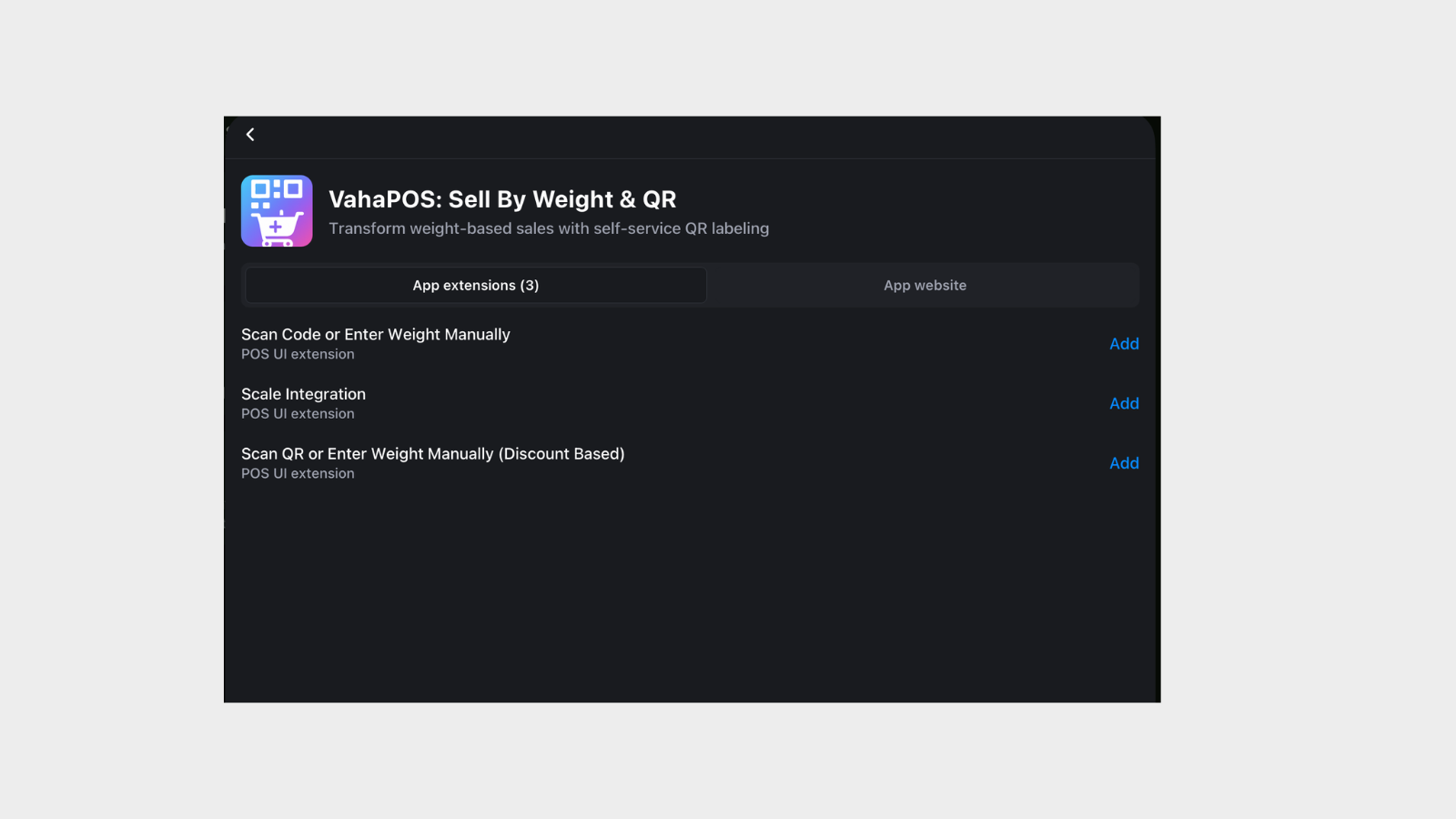
Step 5: The tile appears on your home screen. Tap it to open the extension.
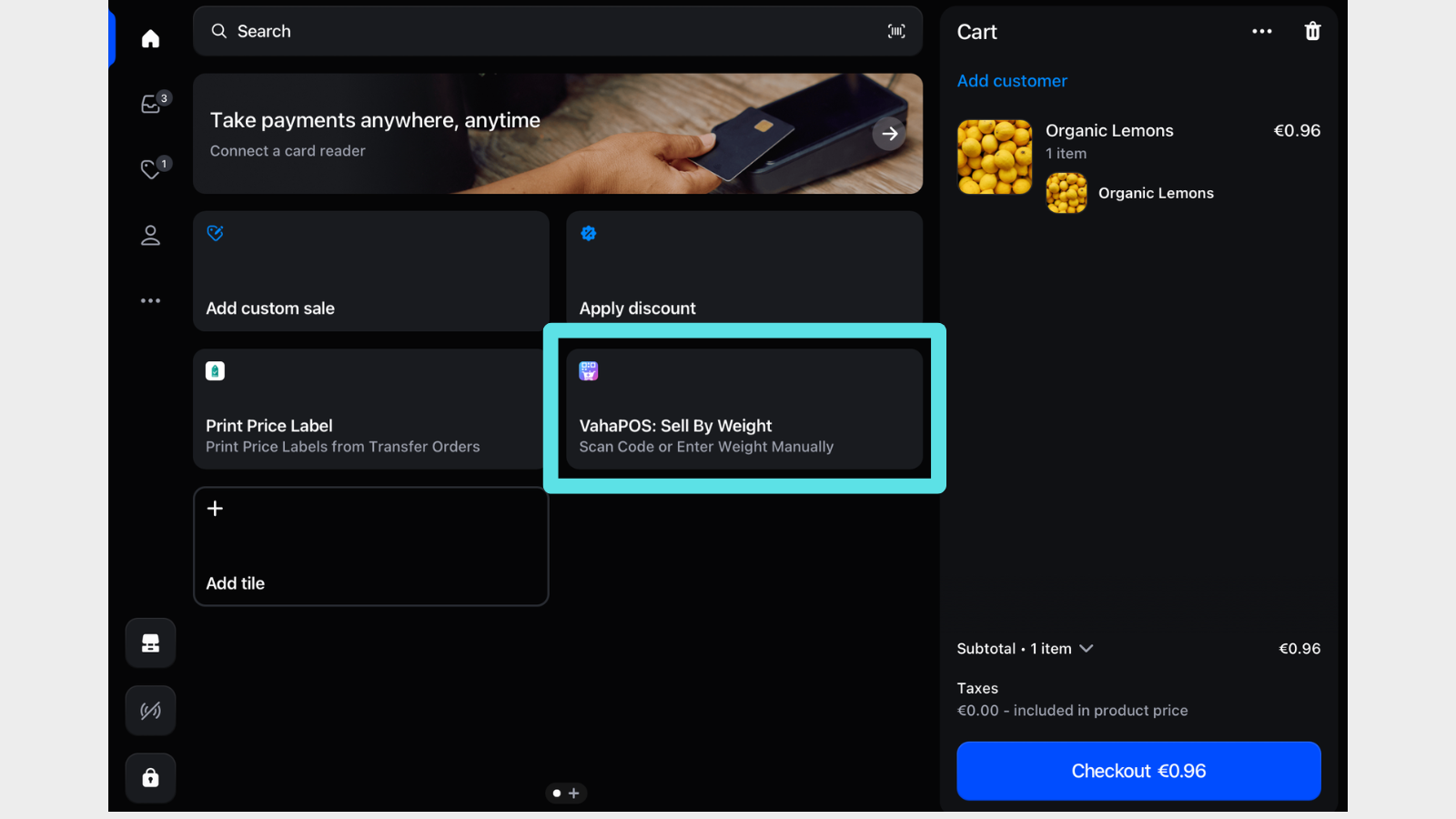
Which tile is which
Two tiles do the same job in different ways. Both produce the correct price; they differ in how the line item looks on the order.
| Tile | How it prices the line | Choose it when |
|---|---|---|
| Scan Code or Enter Weight Manually | A cart transform sets the price and tidies the line item title to include weight and rate. | Default. Clean line items and receipts. |
| Scan QR or Enter Weight Manually (Discount Based) | Adds the product at its normal price and applies an automatic discount to reach the weighed total. | You need the original product price to stay visible on the order. |
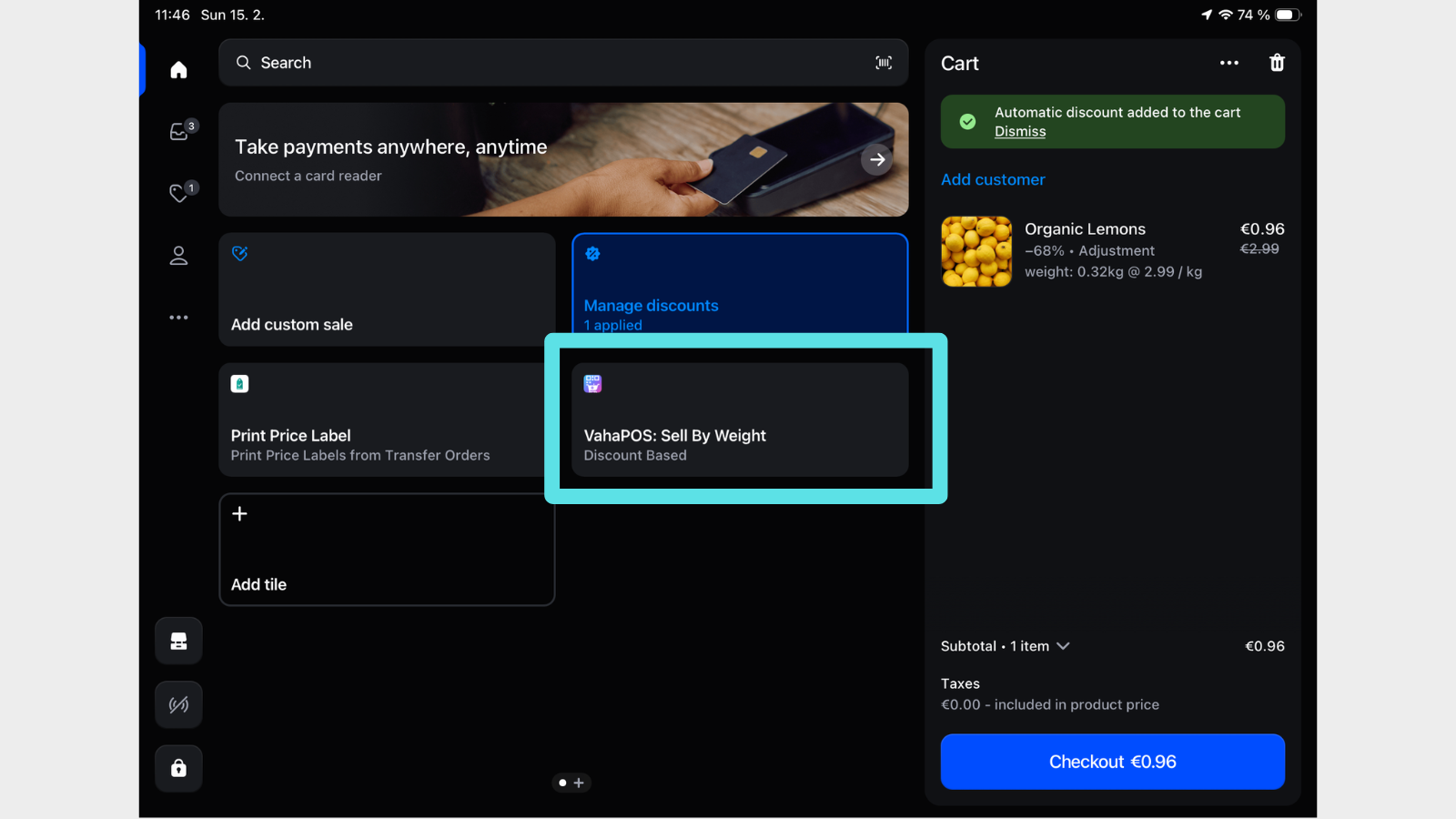
Selling with manual weight entry
Step 1: Open the tile and find the product.
Use the search bar to filter your synced collections, or page through the list.
Step 2: Weigh the item and read the weight off your scale.
Tare the empty bag or tray first so packaging is never charged for.
Step 3: Tap the product, type the weight, and add it to the cart.
Type it in the unit of the collection: kilograms for a per kg collection, pounds for a per lb collection.
Step 4: The line item is priced at your per-unit rate multiplied by the weight.
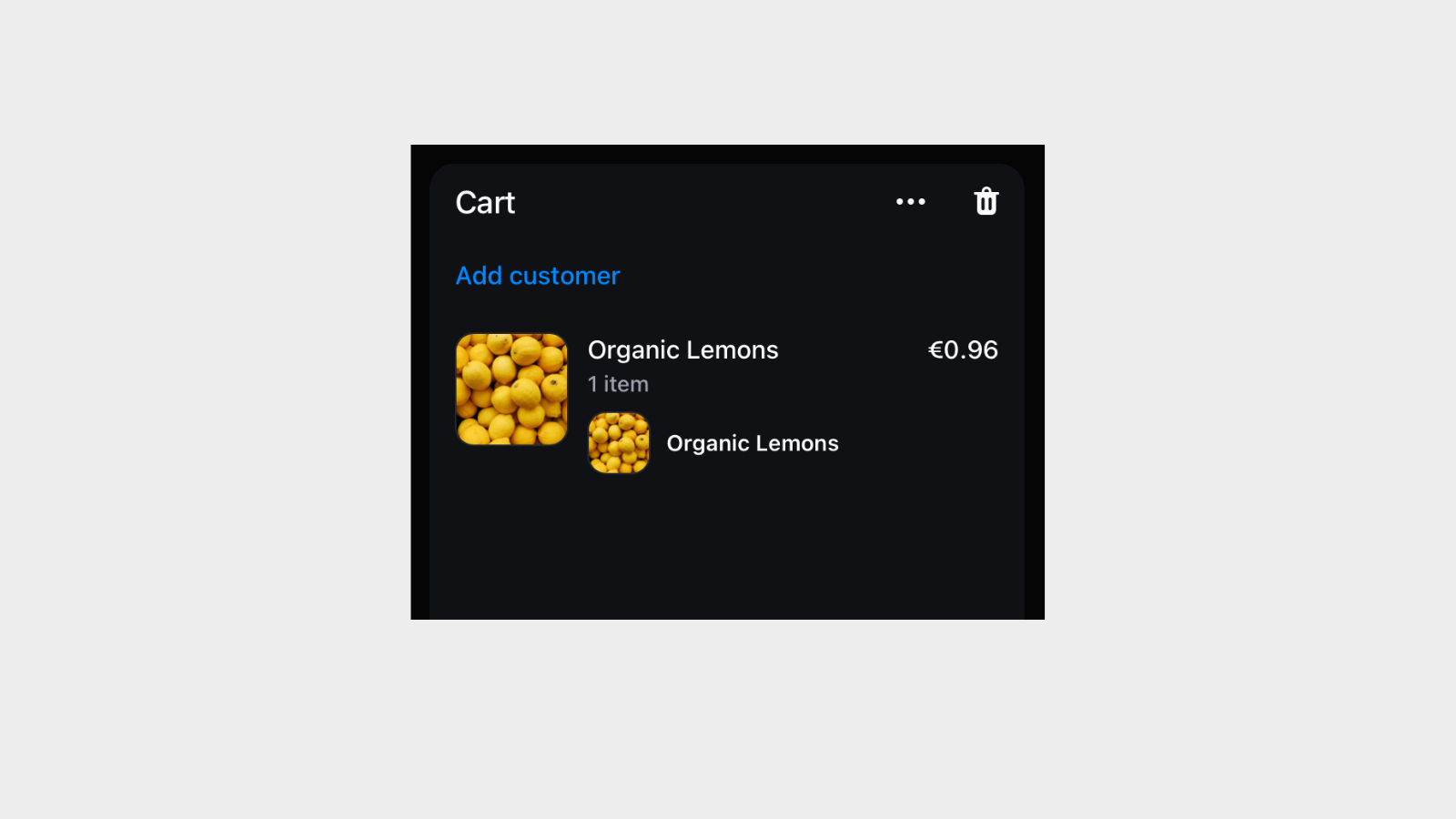
On the receipt
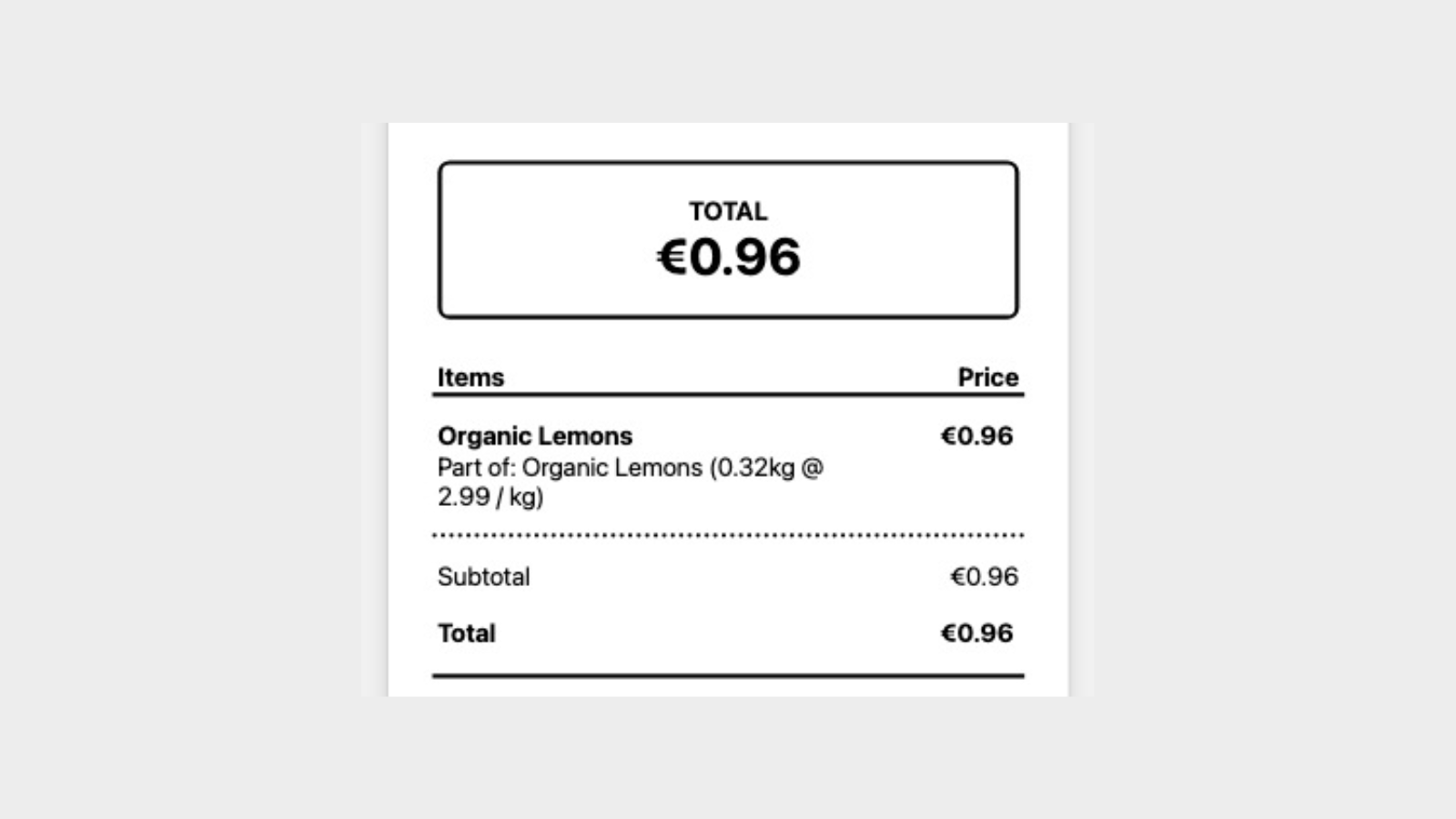
Whatever your Shopify plan, the printed receipt shows the product name with the weight and rate, so the customer can see exactly what they bought.
Shopify Plus and other Shopify plans
The cart transform behaves slightly differently depending on your Shopify plan. The price, the receipt and the inventory movement are identical either way.
| Shopify plan | What happens to the cart line | Result |
|---|---|---|
| Shopify Plus | Line item update: the existing line’s title is changed in place to include weight and rate. | A single clean line, for example “Bananas (0.5 kg @ 2.00 / kg)”. |
| Basic, Shopify, Advanced | Line item expand: the original line is replaced with an expanded version carrying the weight details. | Functionally the same. The line shows as “Part of” the original product. |
What else the tile does: QR codes and barcodes
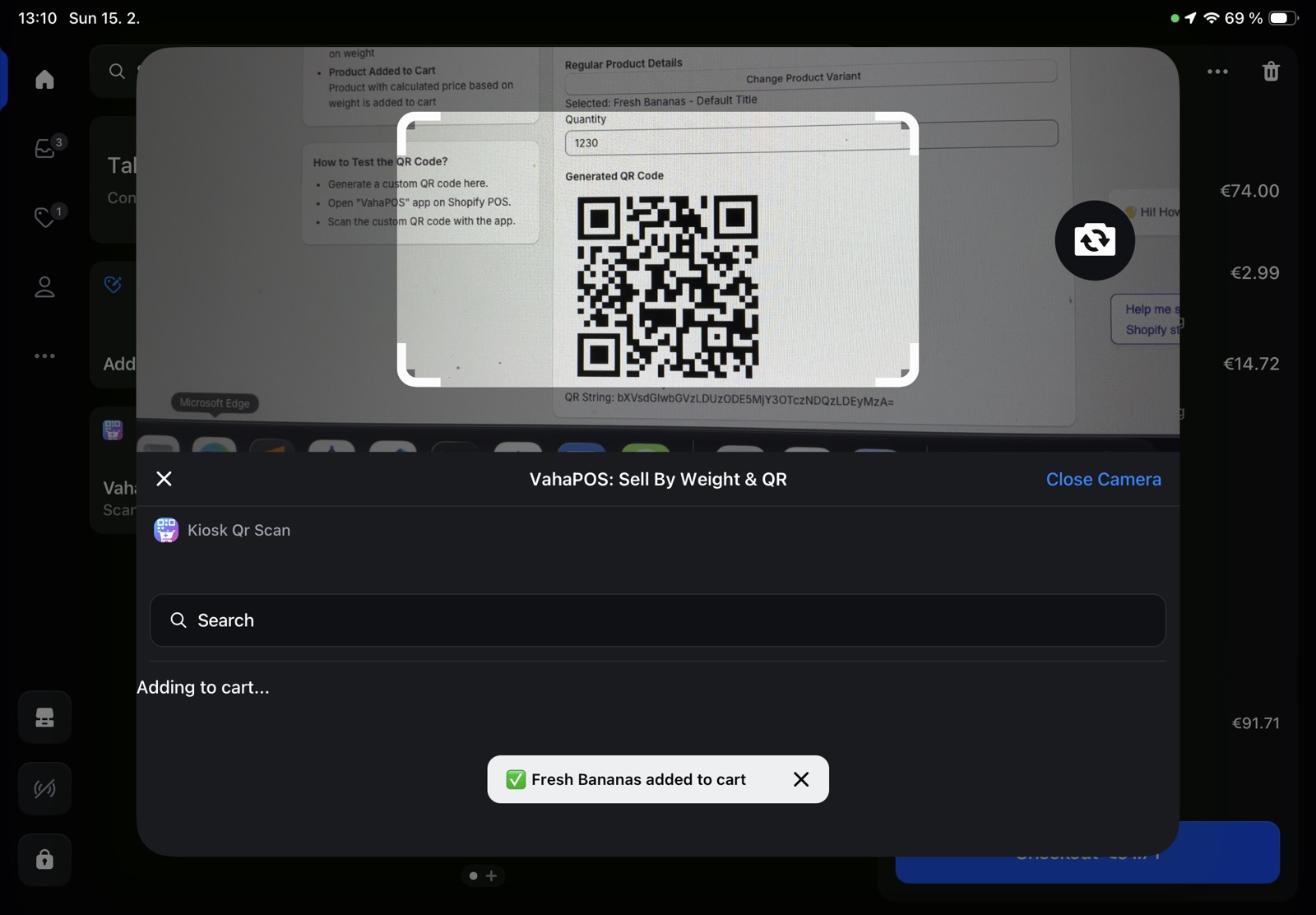
- Scan QR codes. Tap Scan for the camera, or use a connected Bluetooth scanner such as Socket Scan or Zebra.
- Read weight-embedded EAN-13 barcodes with prefixes 20 to 27, pulling the SKU and the weight, price or count out of the digits.
- Search products across every collection you configured.
QR codes the tile understands
| Type | Where it comes from | What it does |
|---|---|---|
| Custom product | QR Code Generator on the dashboard | Adds a custom sale with a set title, price and quantity |
| Discount code | QR Code Generator on the dashboard | Applies a discount code to the cart |
| Regular product | A kiosk device | Adds a product with its weight already attached |
| Customer | The customer account page or theme block | Attaches the customer to the cart for loyalty and order history |
Moving on from manual entry
If typing weights becomes the slow part of serving, a connected scale removes that step entirely. Staff just wait for the reading to settle and tap the product. Your collections and pricing carry over unchanged.
- Connect a scale to Shopify POS for staffed counters.
- Set up a self-service kiosk for customers to weigh their own goods.
- Learn how weight-based inventory works before your first stock count.